


Building a $23 Wi-Fi Pineapple in 6 Minutes ― EASIEST method!
WIFI Pineapple : DIY WIFI Pineapple Setup Guide

I was just poking around for new projects and stumbled upon something cool. I’ve always had my eye on the Hak5 Wi-Fi Pineapple to build up my red teaming toolkit, but I needed to stick to a budget. The Hak5 Wifi Pineapple is a powerful and versatile wireless penetration testing. It allows users to create rogue Wi-Fi networks, enabling them to intercept and analyze network traffic for security testing purposes. It could perform Evil Portal, MITM, DNS poisoning and many wireless attacks using web interface.
After some initial research, I found that the Wifi Pineapple runs on OpenWrt. Also, I found this GitHub project by Xchwarze which talks about cloning the Wifi Pineapple.
Here’s the outline of this project:
- Install OpenWrt firmware.
- Install the Pineapple firmware upgrade file.
- Set up Wifi Pineapple.
You’ll need the following essentials for this project:
- Any compatible router with OpenWRT (I’ll be using Tp-Link Archer C7).
- A USB drive for installing modules.
- OpenWrt 19.07.7.
- Wi-Fi Pineapple firmware.
With these in hand, we’re ready to proceed with the setup process! So, let’s jump right into it!
Install OpenWrt firmware:
Download the OpenWrt firmware 19.07.7 using this link. Then, navigate to your default router login page and upgrade the firmware by simply uploading the OpenWrt router firmware file.
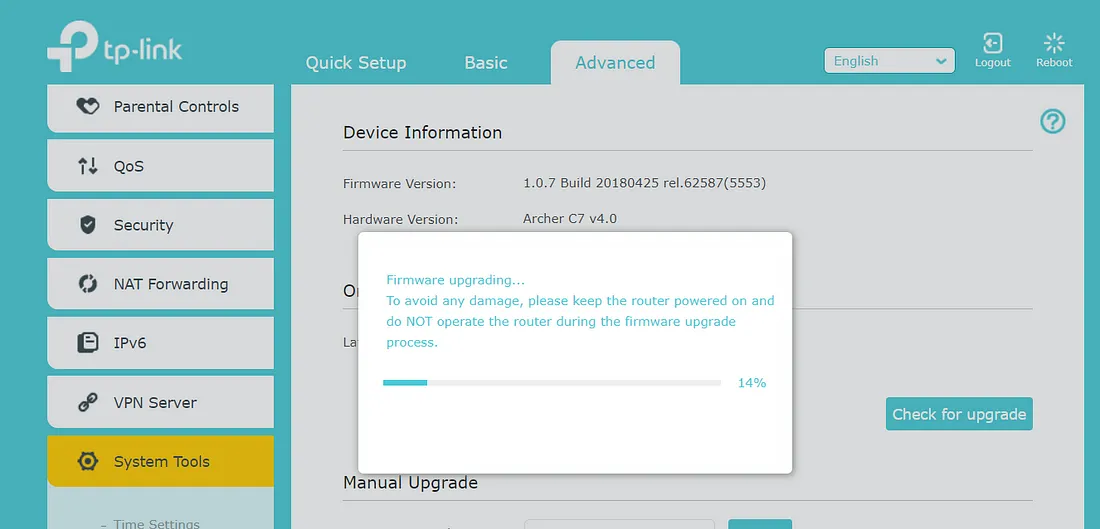
It will take a few minutes for the router to reboot. Do not restart or power off your router during this process, as it may brick your device. Once it’s flashed with OpenWrt, it’s time to upgrade to the Pineapple firmware.
Install the Pineapple firmware upgrade file:
First, we need to download the Pineapple firmware upgrade file. Choose the appropriate router and download the firmware file from the Github repo. For my setup, I will be using the Archer C7 v4 universal file.
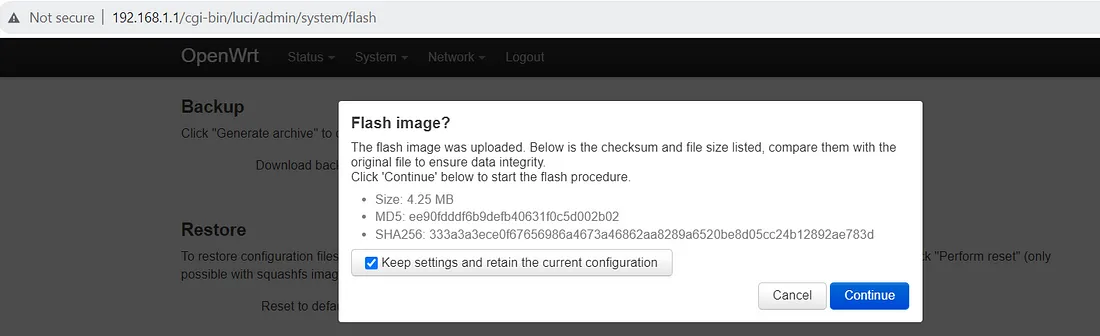
Connect your device using an Ethernet port and open 192.168.1.1 in your browser. Navigate to the System tab and click on the Flash Image option. Choose the Flash Image and upload the Pineapple firmware sysupgrade file you recently downloaded. Uncheck the “Keep settings and retain the current configuration” box, then click continue. Again, this process should take a couple of minutes. Just a reminder: do not restart or power off your router during this time to avoid any interruptions in the firmware upgrade.
Setup Wifi Pineapple:
Once the router restarts, connect it to the internet and browse to 172.16.42.1:1471 to setup your WIFI Pineapple. Congratulations, enjoy your newly configured Wifi Pineapple!”
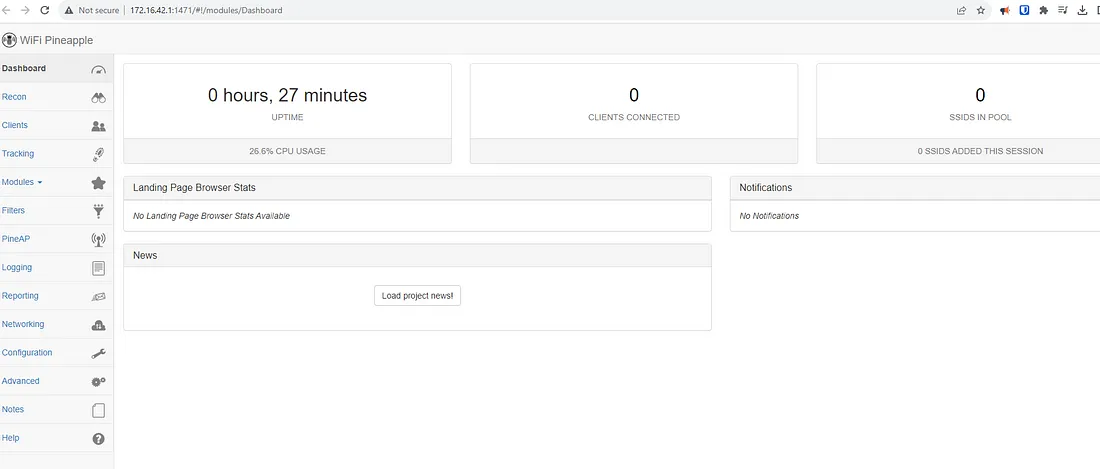
Now that the Wifi Pineapple is set up, let’s proceed with installing modules to make it fully functional.
Plug the USB drive into the router and format it using the provided tool under Advanced > USB & Storage > Format SD Card. This step ensures your USB drive is ready to install the necessary modules for your Wifi Pineapple.
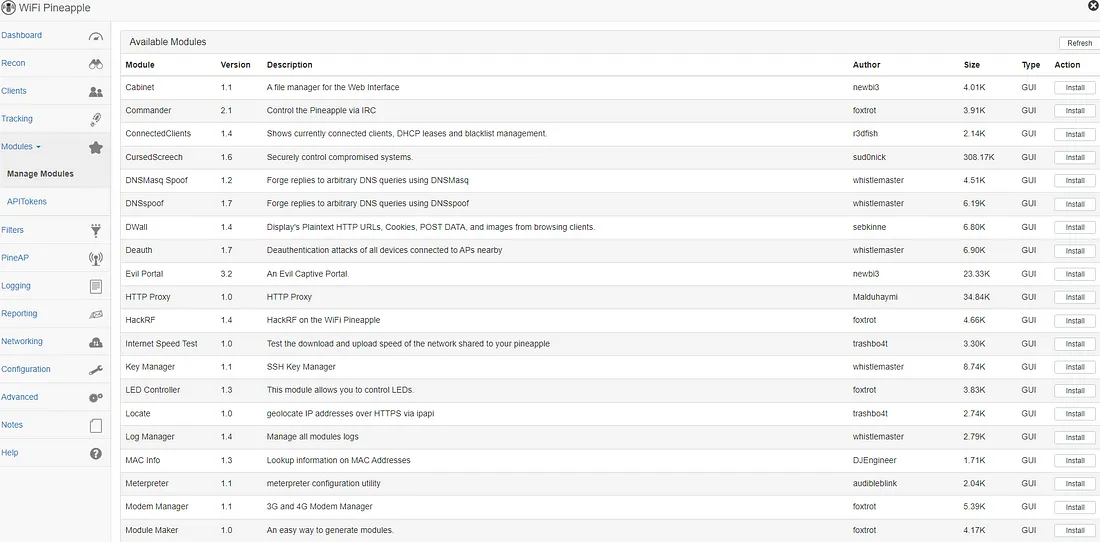
Simply click the Get Modules button and then click Install for the modules you would like to use. Be sure to install dependencies for each module once they are installed.
Conclusion
This is just a proof of concept to show that we can build a Wifi Pineapple on a budget, achieving similar functionality as the official one. Of course, I’d still suggest buying the Hak5 WIFI Pineapple to support the creators. I had a blast experimenting with my homemade version.
I’m thinking of getting a compatible router like Gl.iNet, which is pocket-sized and can be powered by a power bank. This could come in handy, especially when traveling with a gigantic router is a hassle. Big thanks to Xchwarze for sharing this project with the community. source
DIY WiFi Pineapple
Introduction
This guide will give you everything you need to build your own customizable wifi pineapple on a budget using the GL.iNet GL-AR150. The guide includes step by step pictures, alternative analysis, power metrics, and more!
What is WiFi Pineapple?
- WiFi Pineapple is formally a product produced and sold by the company Hak5
- The device is used as a pentest tool and can be used as a rogue access point in both passive and active attacks.
- Check out the official documentation for more information: https://wiki.wifipineapple.com
This guide contains the following sections:
- Comparing Pineapples – Shows hardware differences of both products
- Materials Needed – List of materials you need to build an AR150 WiFi Pineapple
- Flashing Pineapple Firmware – Step by step guide to install the Pineapple firmware
- Hardware Modifications – A guide to integrate the USB hub into the case of the AR150
For additional resources on my website click the links below:
Comparing Pineapples
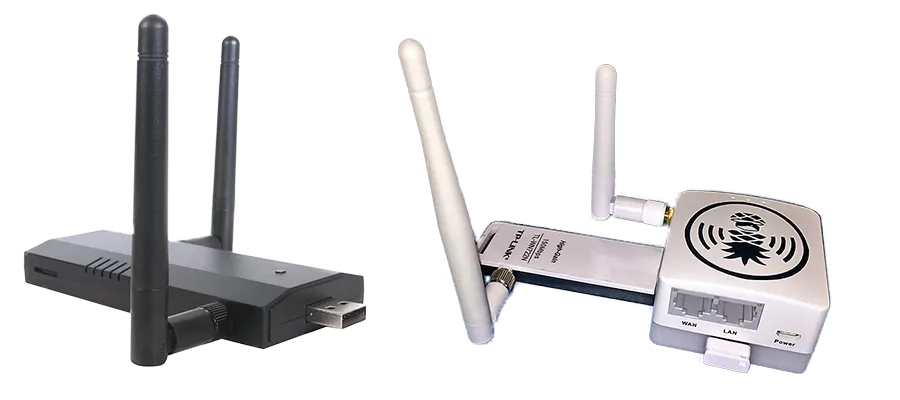
Hardware Differences: None
| Nano | AR150 | |
|---|---|---|
| CPU | Atheros9331, 400MHz SoC | Atheros9331, 400MHz SoC |
| Memory | DDR2 64MB | DDR2 64MB |
| Storage | Flash 16MB | Flash 16MB |
| Wireless 1 | Atheros AR9331 (IEEE 802.11 b/g/n) | Atheros AR9331 (IEEE 802.11 b/g/n) |
| Wireless 2 | Atheros AR9271 (IEEE 802.11 b/g/n) | RT5370 USB WiFi Adapter (IEEE 802.11 b/g/n) |
| Price | $100 | $35 |
Materials Needed
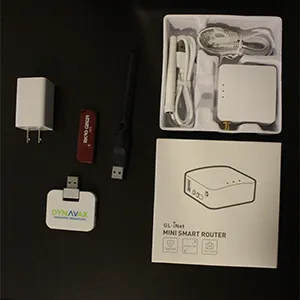
Basic (Total $35):
- AR150 – $26 (https://www.amazon.com/dp/B01FJ4S9JK)
- RT5370 Wifi adapter – $6 (https://www.ebay.com/itm/282647848601)
- Flash Drive (1gb and up)
- USB 2.0 Hub (NOT 3.0)
- Power adapter or external battery (CURRENT)
Advanced Materials:
- USB Hub – $4 (https://www.ebay.com/itm/173995917456)
- Soldering Iron with fine “I” tip (https://www.amazon.com/dp/B07GTGGLXN)
- Helping Hand (https://www.amazon.com/dp/B000P42O3C)
- 3D Printed Case Extension
Flash Pineapple Firmware
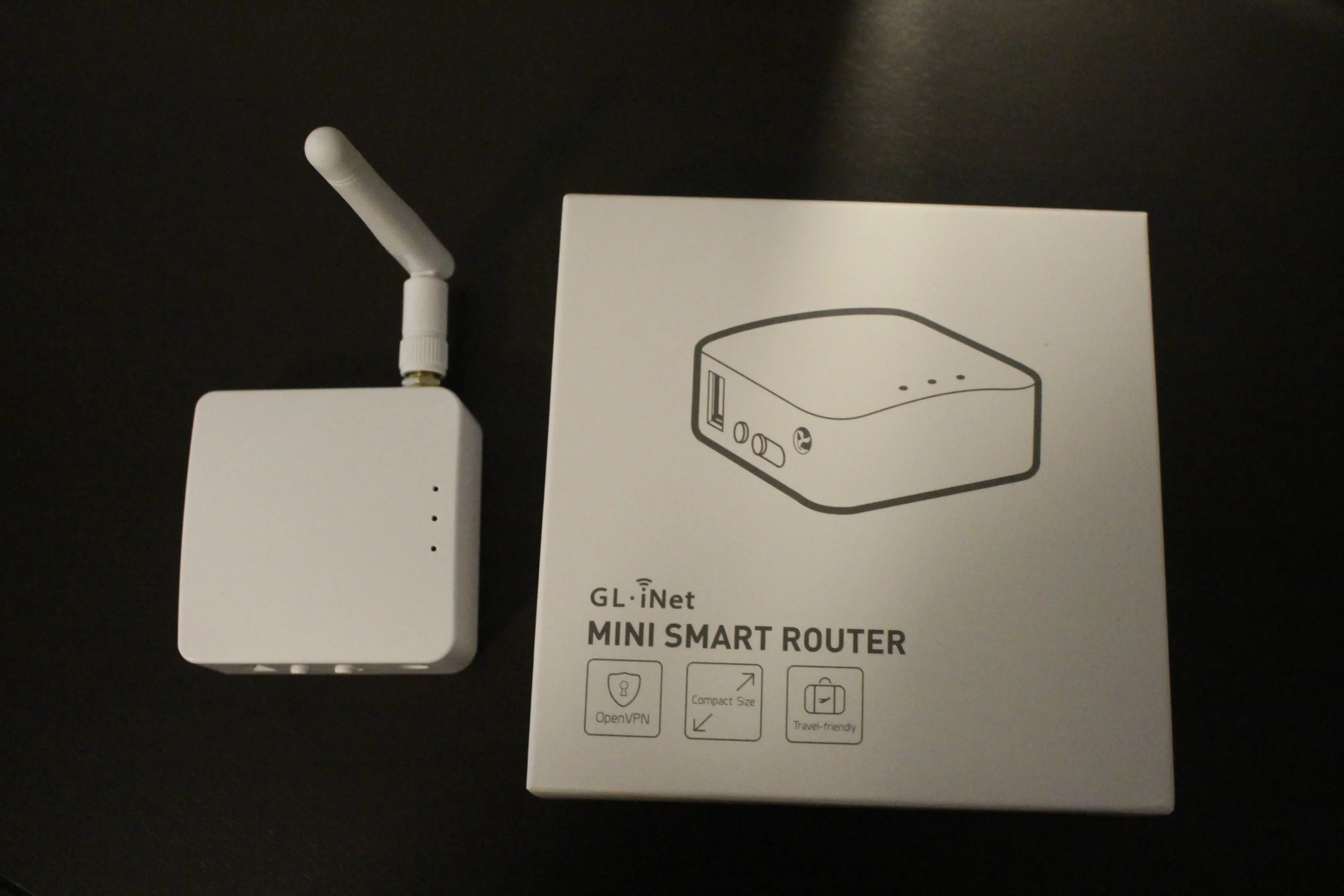
Step 1:
Download the WiFi Pineapple firmware that was modified for the AR150: gl-ar150-nano-<version>-optimized.bin
Step 2:
Power on AR150 and connect a computer to the device’s LAN by one of the following:
- Connect an Ethernet cable to your computer from the “LAN” port
- Connect to its WiFi network “GL-AR150-xxx” using the password “goodlife”

Step 3:
Navigate to http://192.168.1.1 in a web browser and perform initial setup:
- Set Password (Note: this password will only be used once)
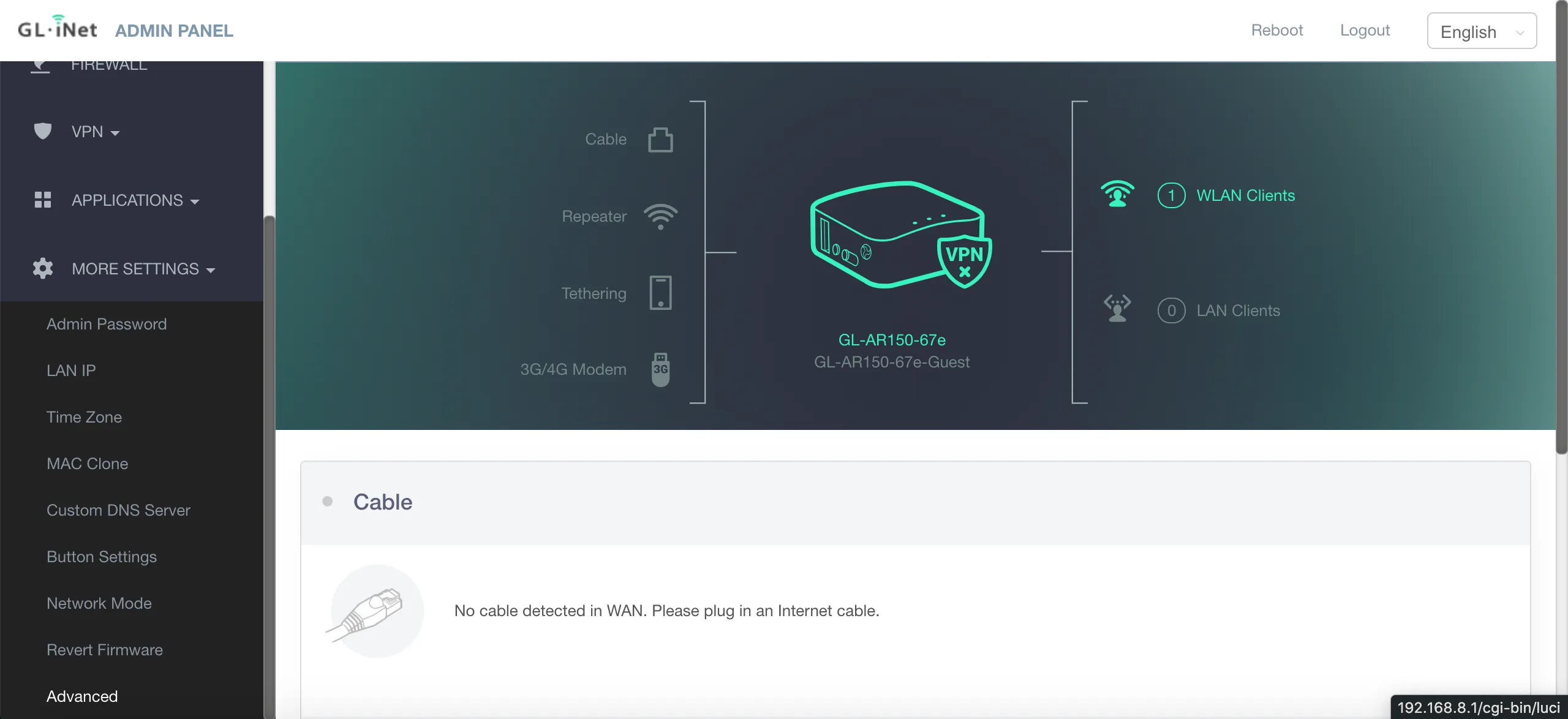
Step 4:
- From the admin panel click on “More Settings” then click “Advanced”
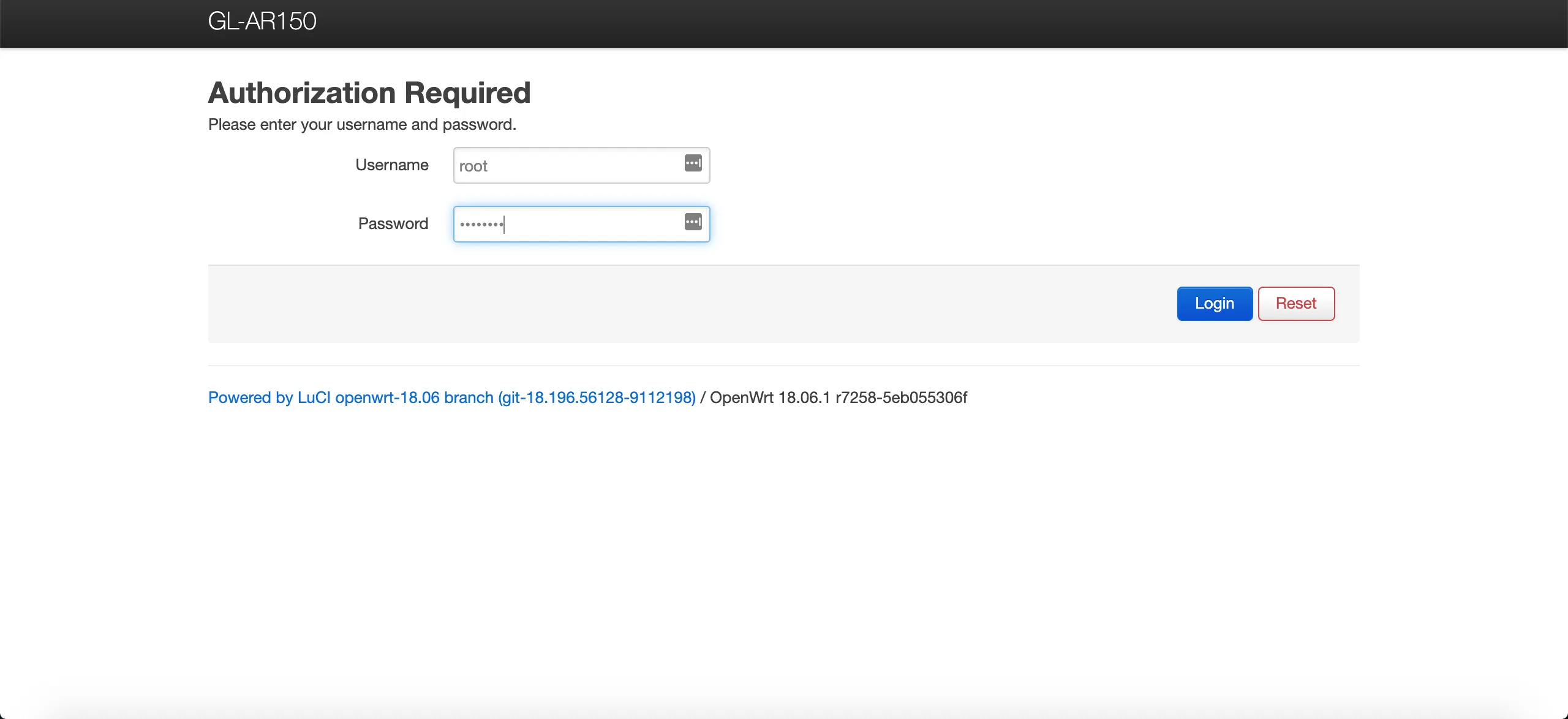
Step 5:
- Login with username “root” and your password created in step #2
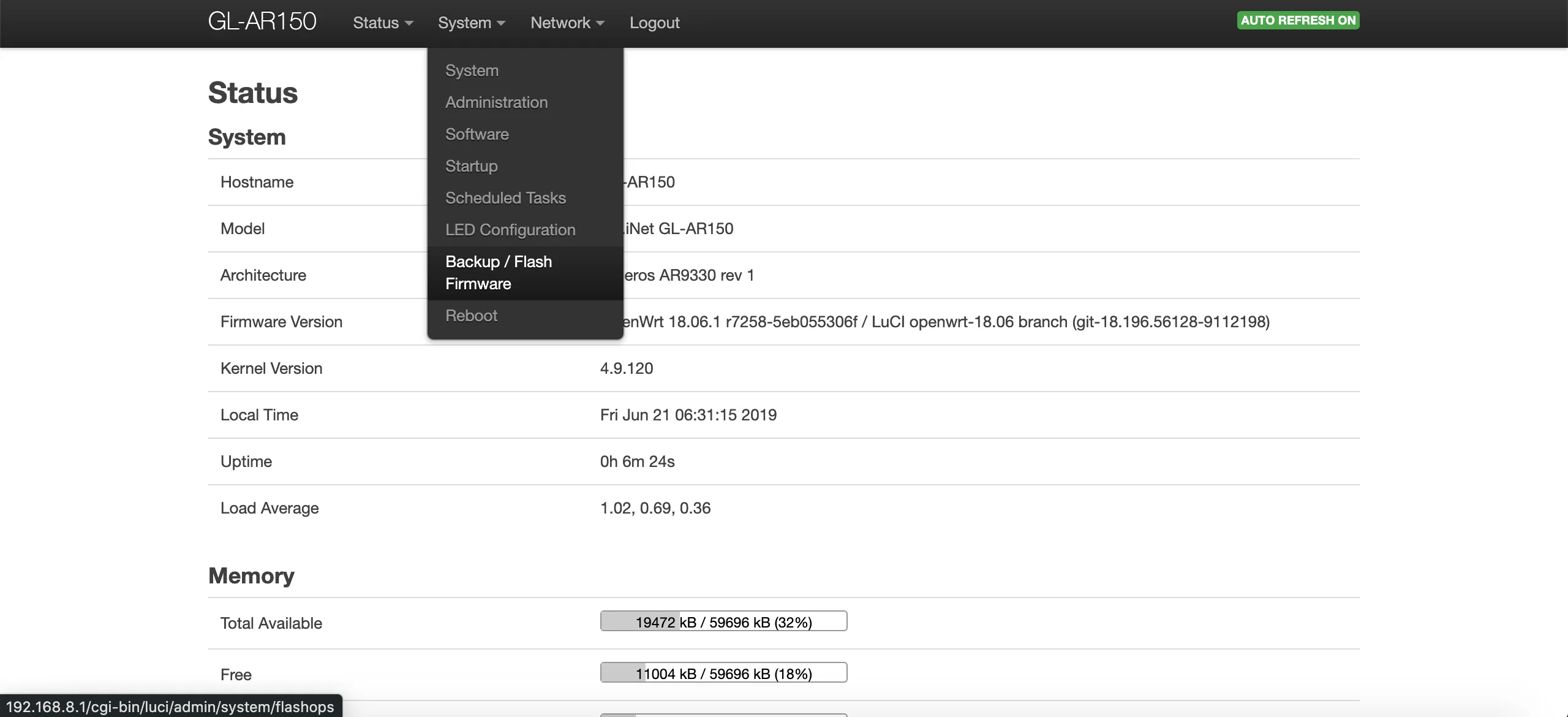
Step 6:
- Click on “System” then on “Backup / Flash Firmware”
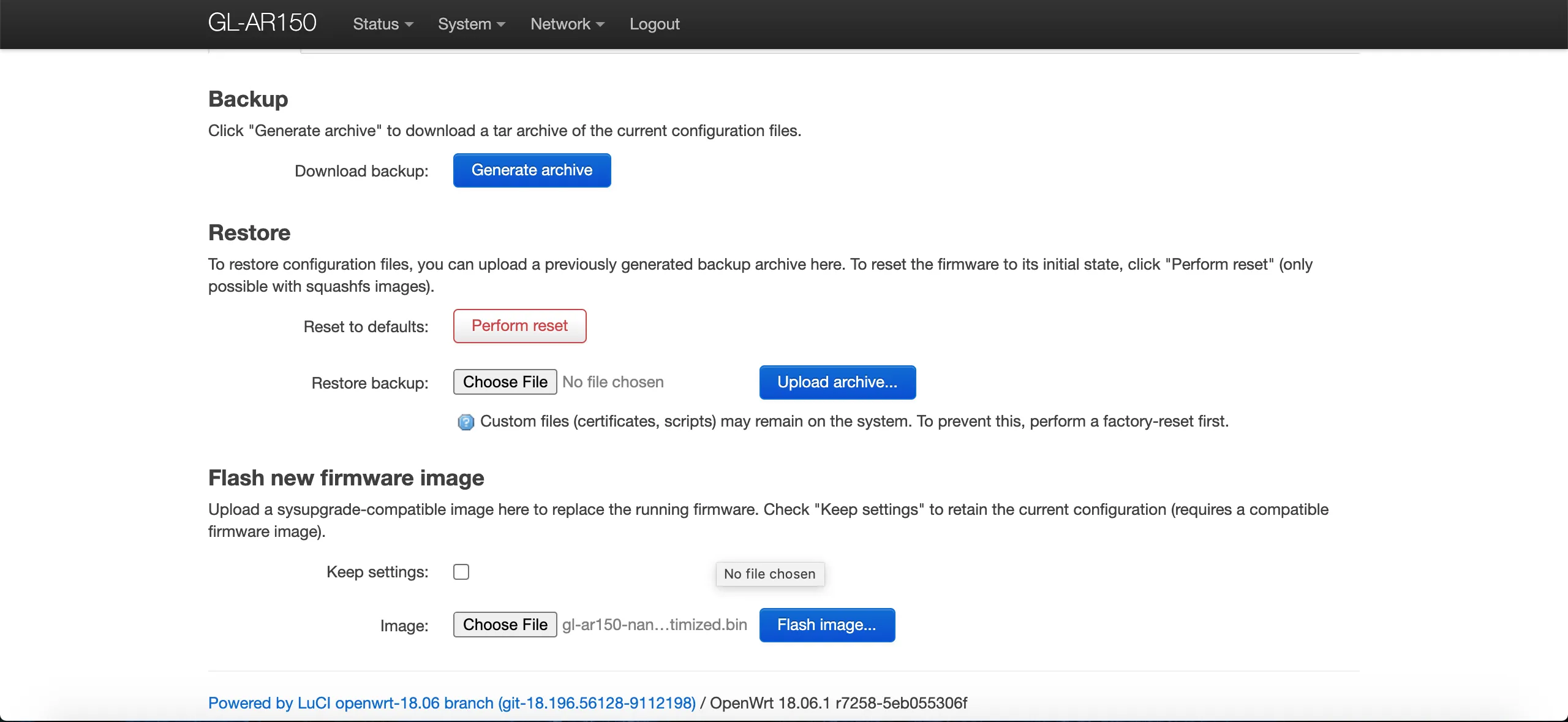
Step 7:
- Flash the optimized .bin file:
- Under “Flash new firmware image” uncheck “Keep settings”
- Choose File and select the .bin you downloaded in step 1
- Click “Flash image”
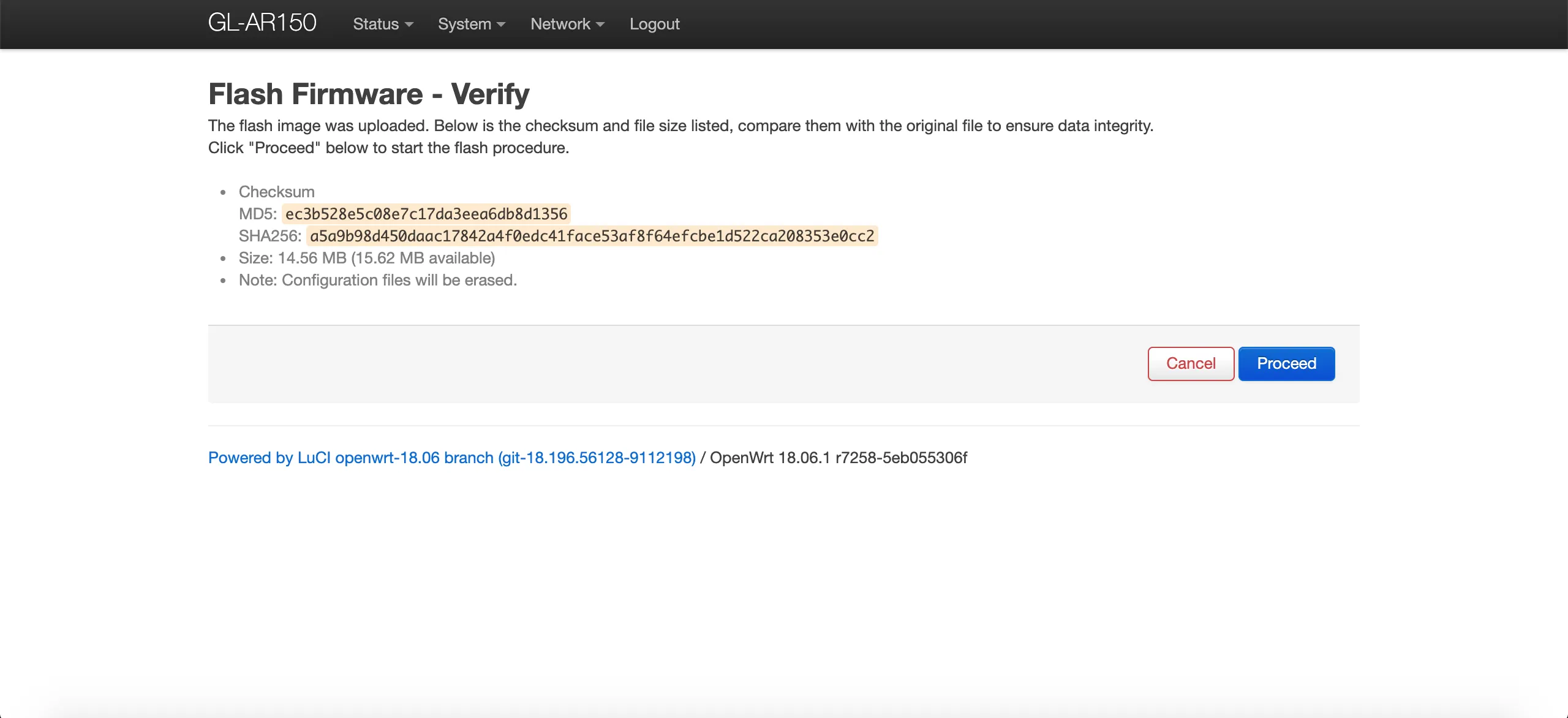
Step 8:
- Click “Proceed”

Step 9:
- Wait about 5min for the flash to complete.
- Join the new network:
- The device will now have a different Wifi SSID and IP address range.
- Follow the guide bellow to connect to the pineapple over Wifi or LAN…

Step 10:
If on WiFi
- Search for a network with “pineapple” in the name, connect to it
- Change your computer’s IP address to “172.16.42.42”
- Navigate to https://172.16.42.1:1471 in your web browser
- When you see the prompt for “Secure Setup”, proceed by holding the reset button for ~5 seconds
If on Ethernet LAN
- Change your computer’s IP address to “172.16.42.42”
- Navigate to https://172.16.42.1:1471 in your web browser
- When you see the prompt for “Secure Setup”, proceed by quickly pressing the reset button (don’t hold it)
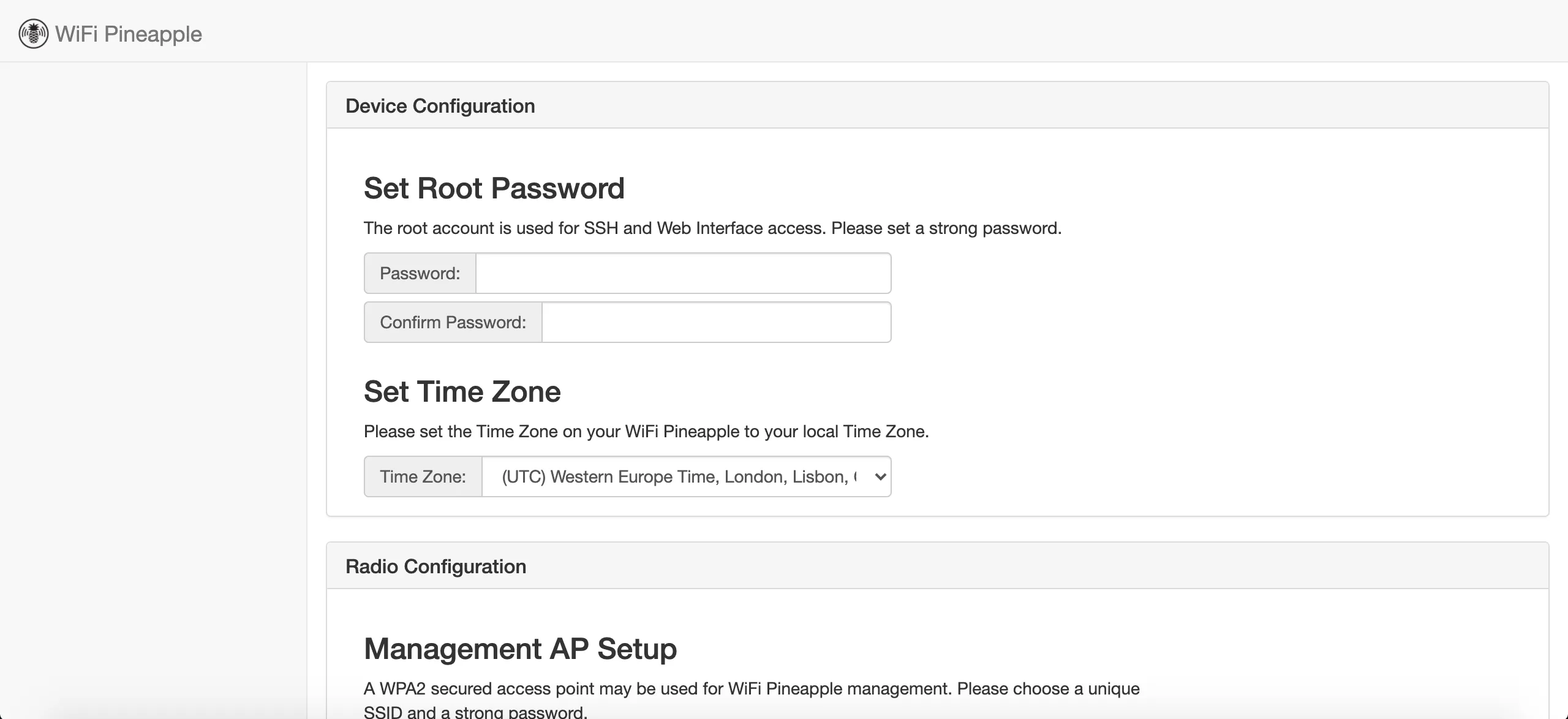
Step 11:
- Pineapple Configuration:
- Root Password
- Time Zone
- other
Hardware Modifications
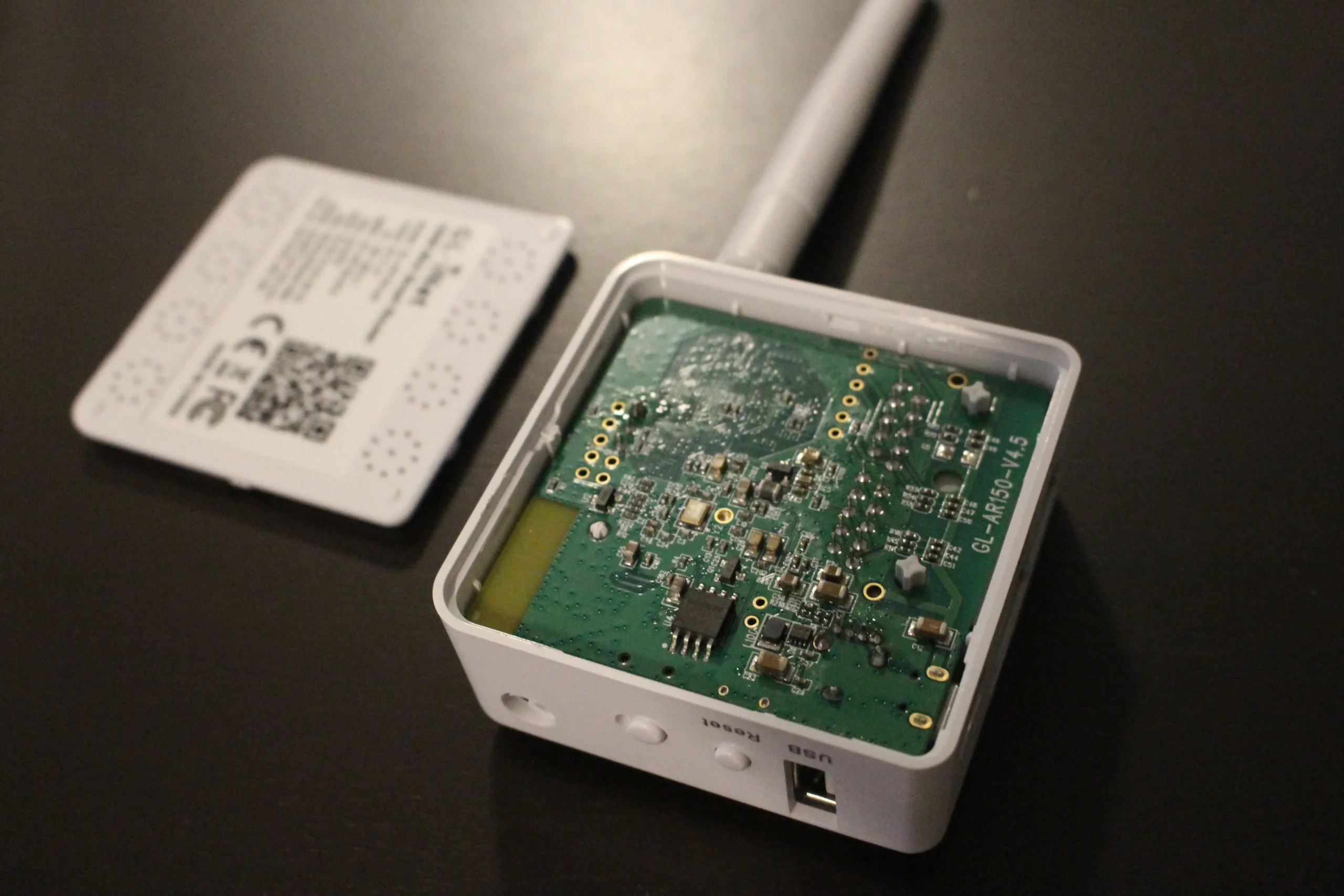

Step 1:
- Remove the back cover
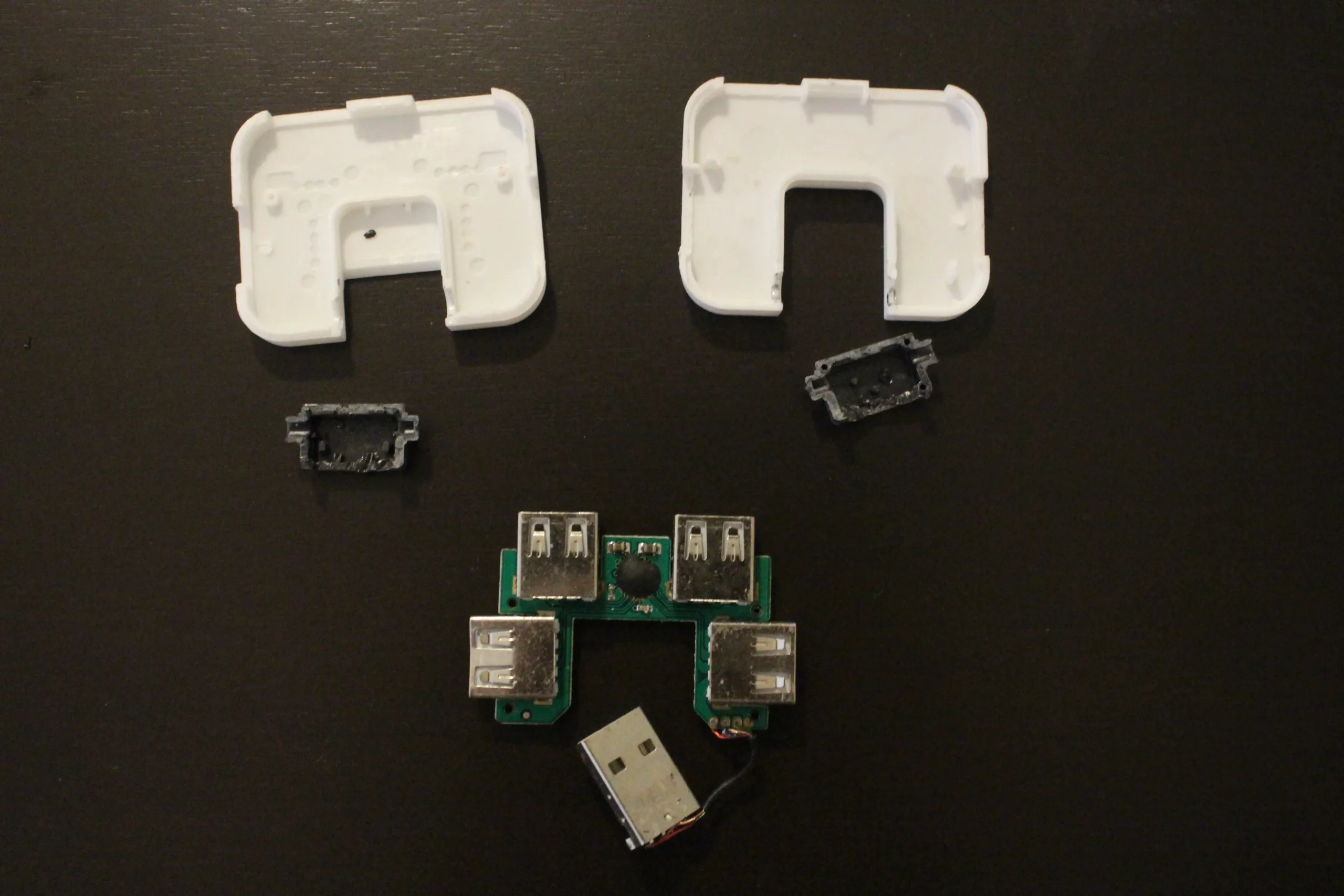
Step 2:
- Dissasemble the USB Hub (A screwdriver and some prying should do the trick, don’t damage the female usb ports)
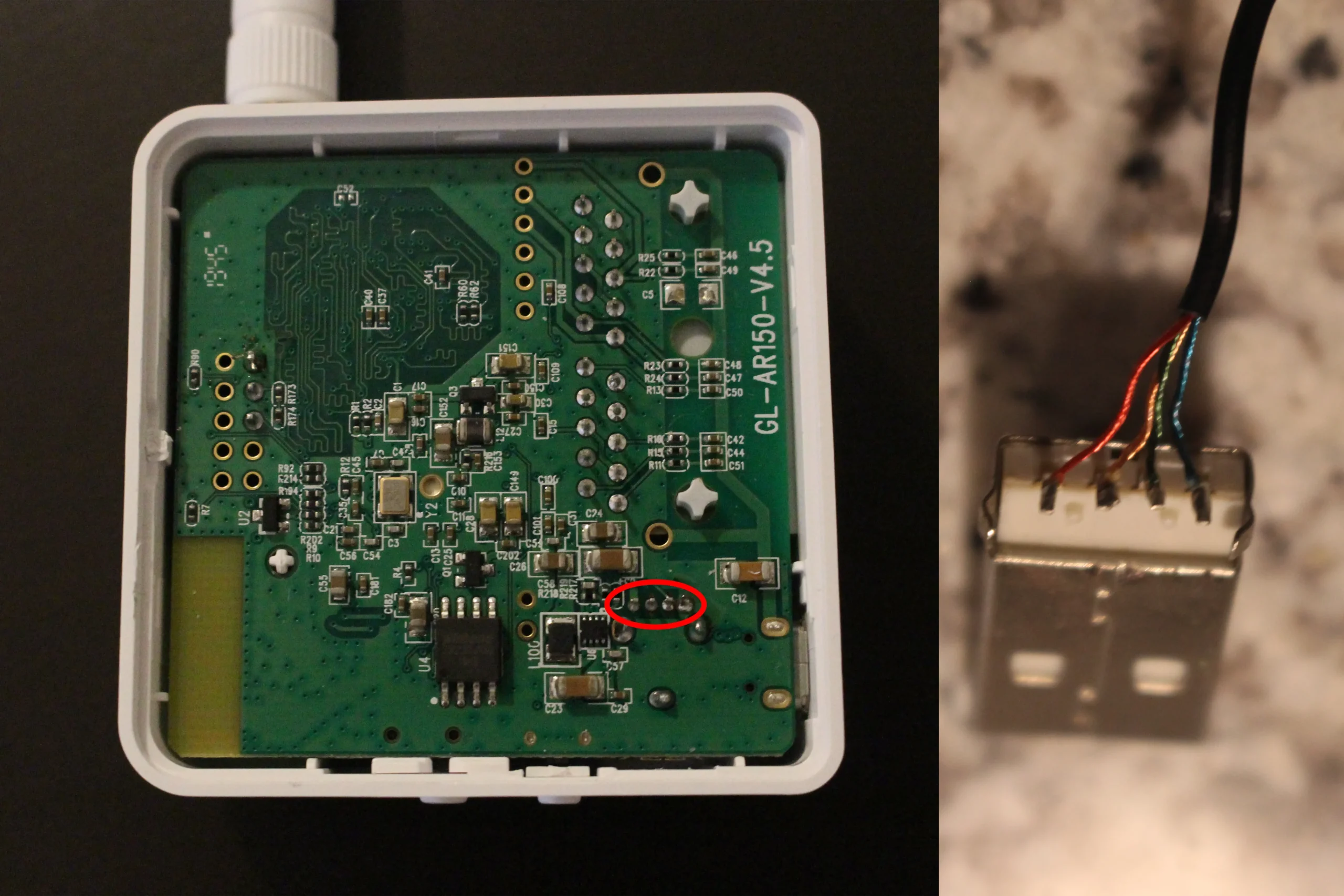
Step 3:
- Note the order of the wires, the wires should go in this order onto the AR150 board
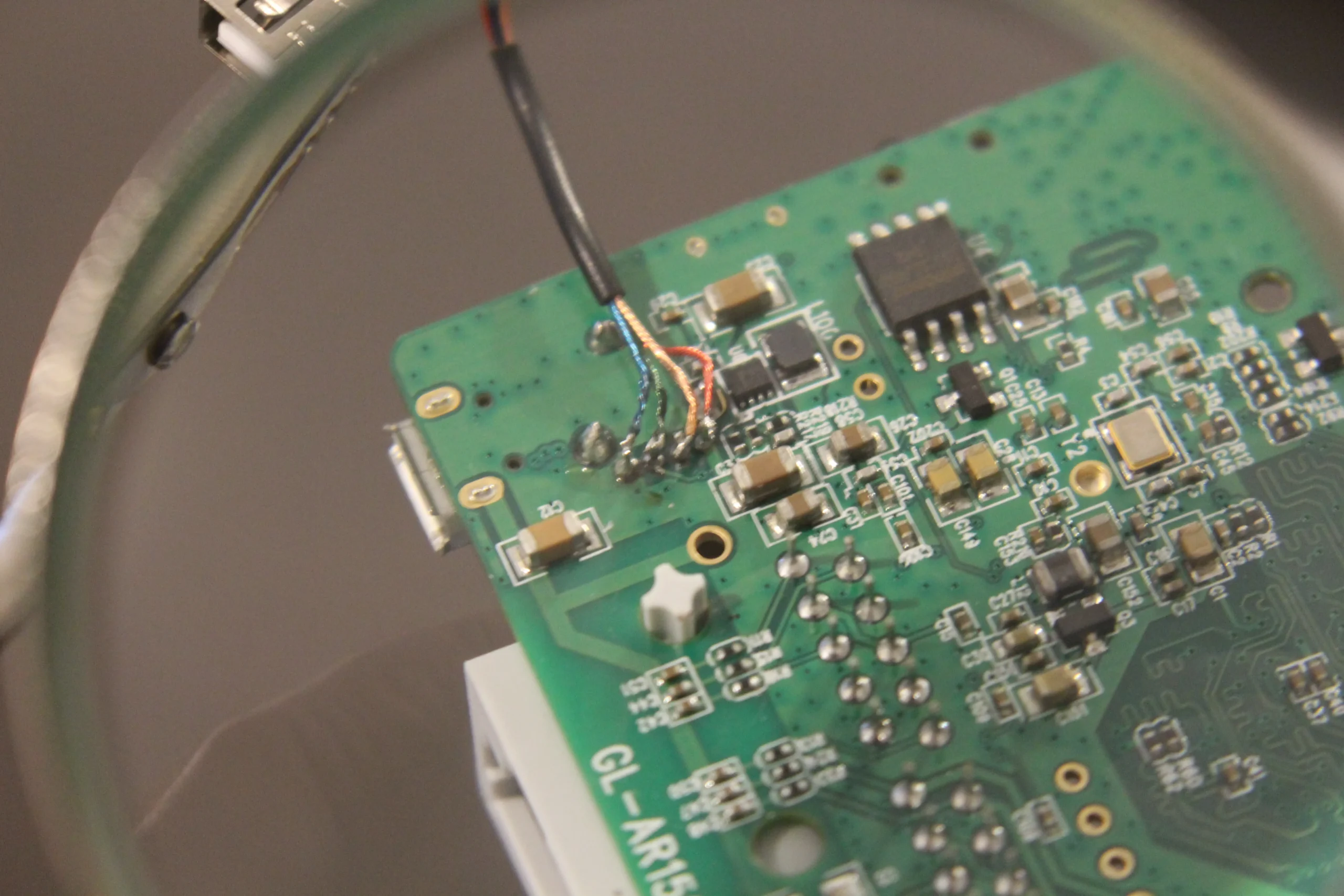
Step 4:
- Solder the wires with a fine soldering tip (“I” is recommended)
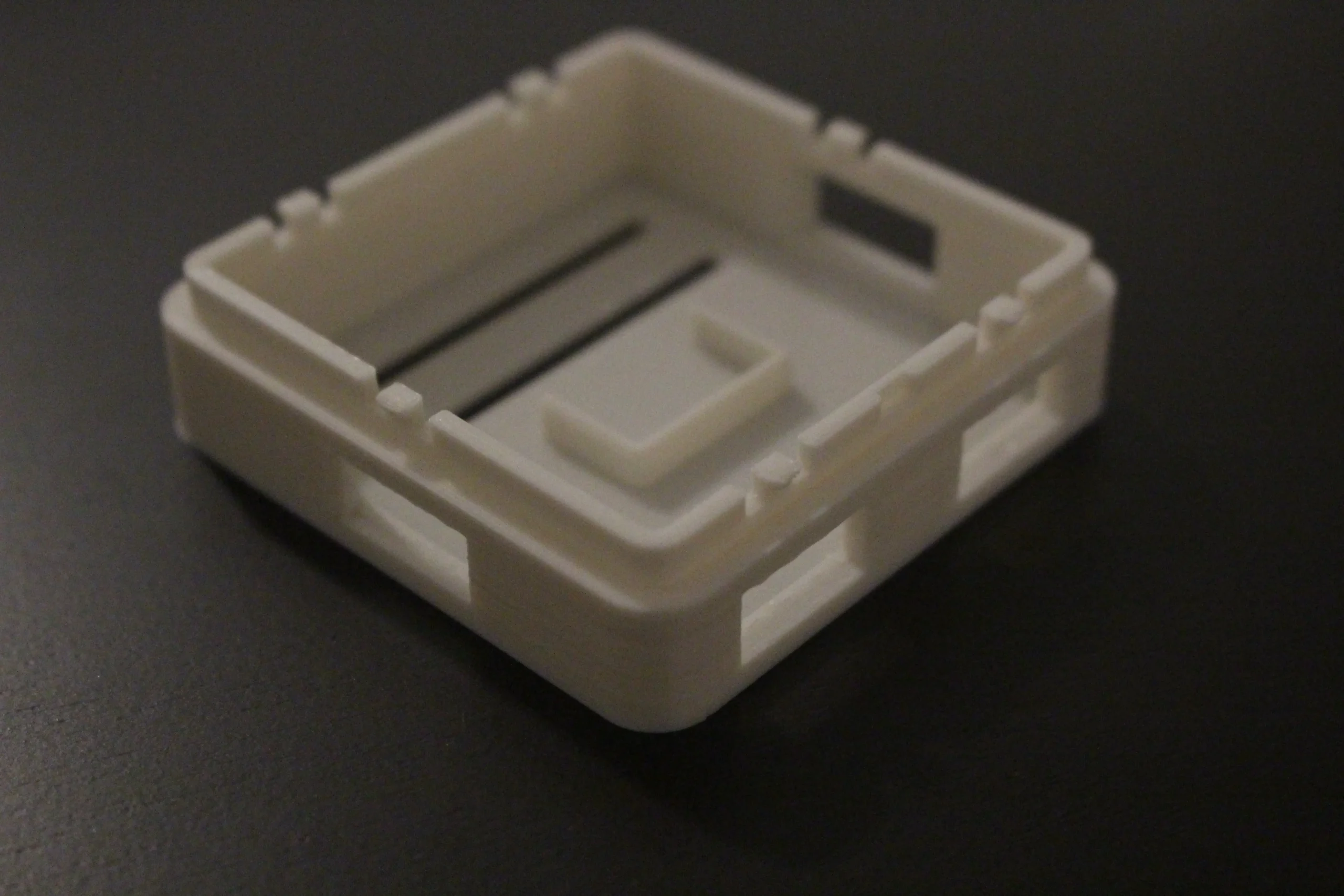
Step 5:
- 3D print the case extender using the following settings (or Buy: )
- Plastic: PLA or PETG (ABS may shrink and cause model to not fit)
- Layer Height:
- Density: %
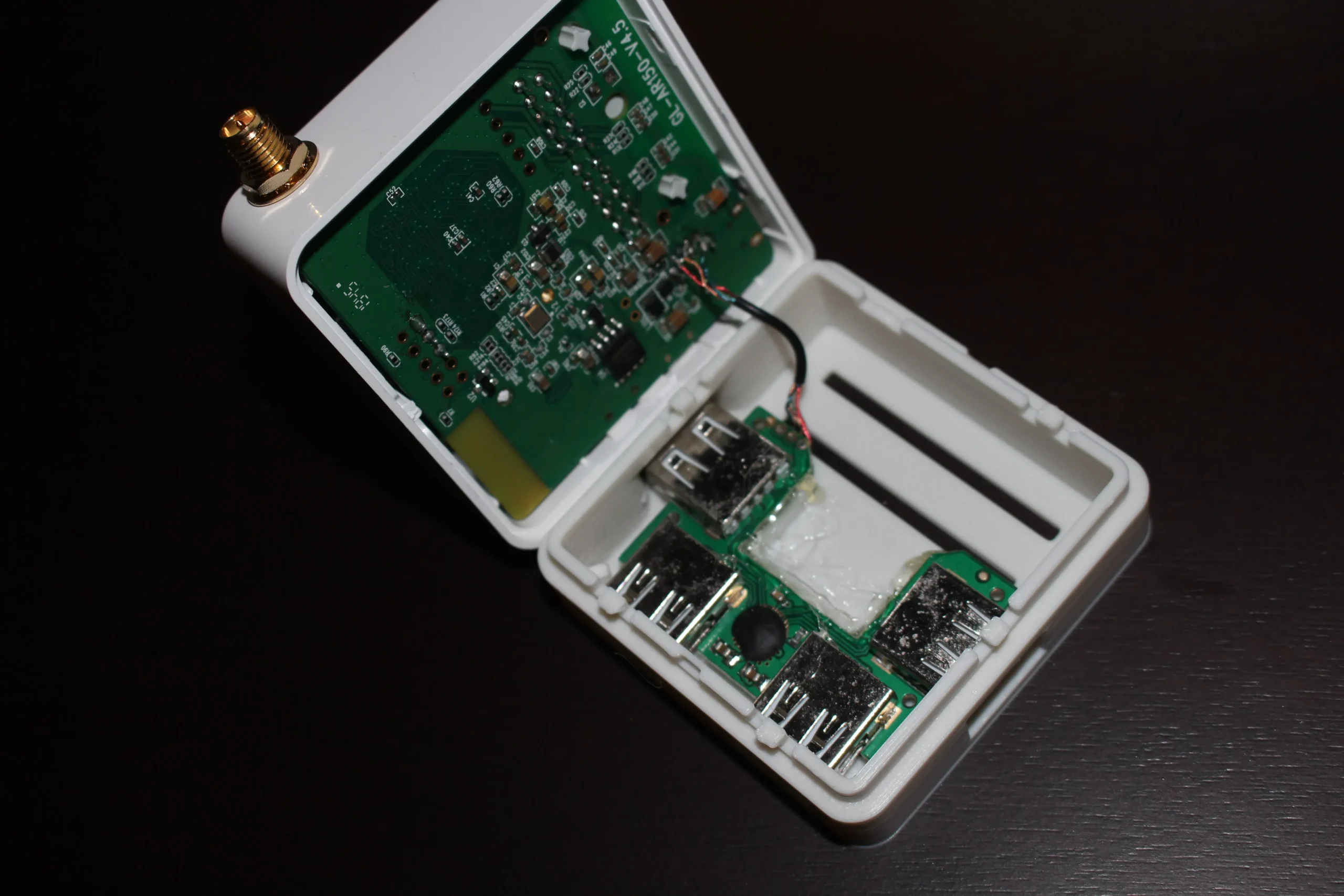
Step 6:
- Insert the USB hub and hot glue it in place for added support
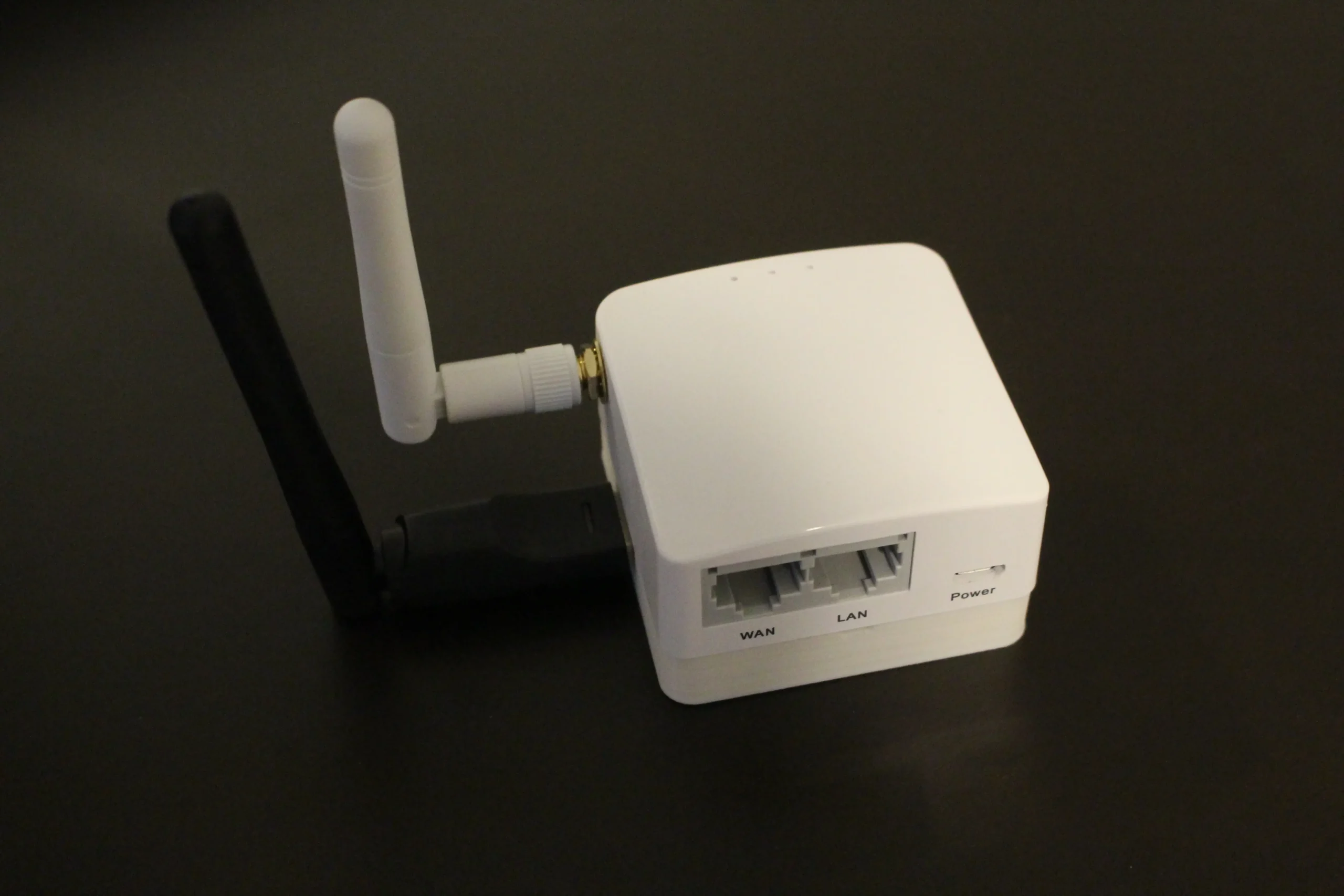
Step 7:
- Snap the pieces together making sure it is correctly aligned source
HOW TO USE YOUR WIFI PINEAPPLE
if you need a full sevice PCB manufacturer go here PCBWay
by
learn how to defend yourself below
What is a Wi-Fi Pineapple? How to Protect Yourself From Pineapple Attacks
WiFi Pineapple Definition & Pineapple Router Uses
Learn how Adaptive Multi-Factor Authentication combats data breaches, weak passwords, and phishing attacks.
A WiFi Pineapple is a small piece of equipment with a silly name and a lot of power. Some people use this tool for a legitimate security purpose. Others use it for hacking.
Whether you work in security or are concerned about the safety of your own data, it pays to know what a Pineapple router is. Chances are, you’ll encounter it at least once during your lifetime.
What Is a WiFi Pineapple?
The size and shape of this device give the WiFi Pineapple its name. It’s a small, black device with several spikes. Developers thought it looked a bit like tropical fruit, so they named it accordingly.
The WiFi Pineapple was developed by Hak5, a private company. For about $100opens in a new tab, you can purchase one for yourself or your company. And you’re not required to disclose what you’d like to use it for.
Hak5 is known for creating testing tools. When the WiFi Pineapple was released in 2008opens in a new tab, most people assumed testers would find it useful and everyone else would ignore it. The reality is a bit different.
How a WiFi Pineapple Works
< Open a WiFi channel on your computer, and the device will make a connection to an available router. A WiFi Pineapple is positioned between the device and the router, and with the proper programming, it can inspect all the data as it moves from one location to another.
Setting up a WiFi Pineapple isn’t always easy. Bloggers who detail their work create posts that take up dozens of screensopens in a new tab. But when the work is done, you’ll be able to look over all the traffic moving to and from a device and a WiFi router.
The device makes use of the underlying technology in any WiFi system. When you connect to a WiFi, your device remembers the service set identifier (SSI) of that router. When you’re in the same location, your device seeks out a router with the right SSI.
A WiFi Pineapple imitates the proper SSI, and that means anyone preprogrammed to connect will link with the Pineapple router instead.
Legitimate Uses of a Pineapple Router
Computer security experts must understand how their systems work, where they are breaking, and why they might be vulnerable to an attack. A Pineapple WiFi router makes that work much easier.
During a penetration test (or pentest), experts attempt to hack a system, and they document their work for fixes and corrections. Typically, a pentest requires specialized software and operating systemsopens in a new tab. But a WiFi Pineapple makes it really easy.
A security analyst might set up a Pineapple WiFi and then:
- Look for hookups. Do people from your company attach to it automatically rather than using your authorized WiFi?
- Watch for disclosures. During a man-in-the-middle attack, a hacker watches all the data that passes between a device and a server. A WiFi Pineapple mimics this approach. How much would an attacker see?
- Seek out access. Can a hacker who sets up a man-in-the-middle attack gain further access to your system?
- Watch for alarms. Do your automated systems catch the intruder? How long does it take?
WiFi Pineapple softwareopens in a new tab makes monitoring easy. You’ll get email alerts throughout the simulated attack, and you can even tag interesting devices and follow them after they’ve been tapped by the program.
Someone using a WiFi Pineapple emerges with a significant amount of data about how the system works and what should be fixed.
Hackers Use Pineapple WiFi Too
Just as security experts can launch man-in-the-middle attacks, so can hackers. The technology works in the same way.
A hacker might take over the SSI of a well-known WiFi router, such as one located inside of a college campus. An attack might look like this:
- Select victims. Anyone who has attached to the server before is a target.
- Set up the attack. Using the WiFi Pineapple, the hacker spoofs the SSI of the intended server.
- Connect. A student comes within range of the spoofed router and connects.
- Attack. The hacker can now see everything that moves from the device to the server and back.
A quick search brings up plenty of step-by-step instructionsopens in a new tab hackers can follow to craft code. All they need are willing victims.
Unfortunately, many people are willing to connect with WiFi resources that seem free and readily available. They may push past security warnings and decline commonsense steps so they can hop online and complete their tasks.
A hacker even launched an attack like this at a conference for hackersopens in a new tab, proving that it’s almost irresistible for some people.
But some devices now come with sophisticated warning systems, and some don’t allow connections with devices that don’t seem secure or legitimate. Some hackers believe the WiFi Pineapple heyday is overopens in a new tab, as taking control is more difficult now than it once was.
But if a hacker can execute an attack like this, they can gain access to critical information, such as these:
- Social Security numbers
- Photographs
- Bank account numbers
- Passwords
Protecting Against Wireless Pineapple Attacks
Hackers are clever, and they use all sorts of tips and tricks to gain access into assets they have no business touching.
Commonsense protection steps involve:
- Avoiding public WiFi. Don’t connect to any device you don’t own. Rely on your cell service instead.
- Turning off WiFi when you leave your house. Don’t allow your device to scan for SSIDs as you move from location to location. Snap off the functionality when you’re on the go.
- Leaning on a VPN. Virtual private networksopens in a new tab (or VPNs) encrypt your data as it moves through the internet. Even if you’re connected via a WiFi Pineapple, your data will be protected.
We can help too. Contact us to learn how Okta can help keep your data and users safe from network attacks and vulnerabilities. source
in case the youtube videos are deleted here they are